 Tapescript
How to record lectures on iPhone and get notes
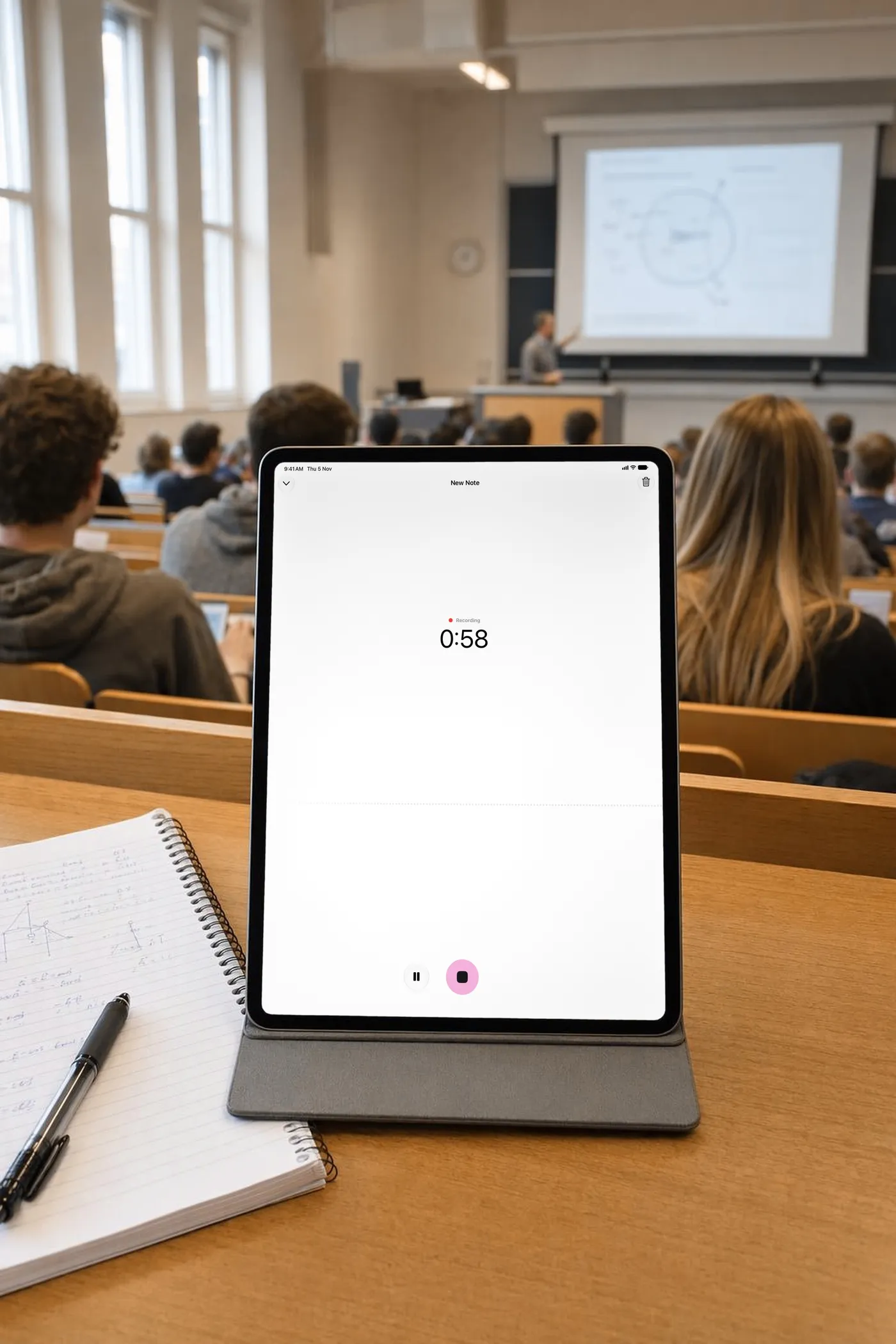
To record a lecture on an iPhone, ask the lecturer or check your university’s policy, sit within a few rows of the speaker, lay the phone flat on the desk with the screen up, and start recording before the lecture begins. Voice Memos will give you the audio. An app like Tapescript gives you the audio written down, with a summary, the key points and what you have to do before next class, which is what you actually revise from.
Ask before you record
Most universities have a written policy on recording teaching. Some allow it for personal study, some leave it to the lecturer, and some already record their lectures and publish them, in which case you may not need to record at all. A one-line email to the lecturer settles it.
If you need recordings because of a disability, go through your university’s disability services. They can arrange permission for every course at once, so you don’t have to ask each lecturer.
Rules on recording people also differ between countries, and in the US between states. A lecture is rarely a private conversation, but a small seminar where classmates talk about themselves might be. When in doubt, ask the room.
Where to sit and where to put the phone
Your iPhone’s microphones are good at picking up a voice a couple of metres away. They are not good at picking one out across a hall full of rustling, coughing and laptop keys. Distance matters more than anything else you can change.
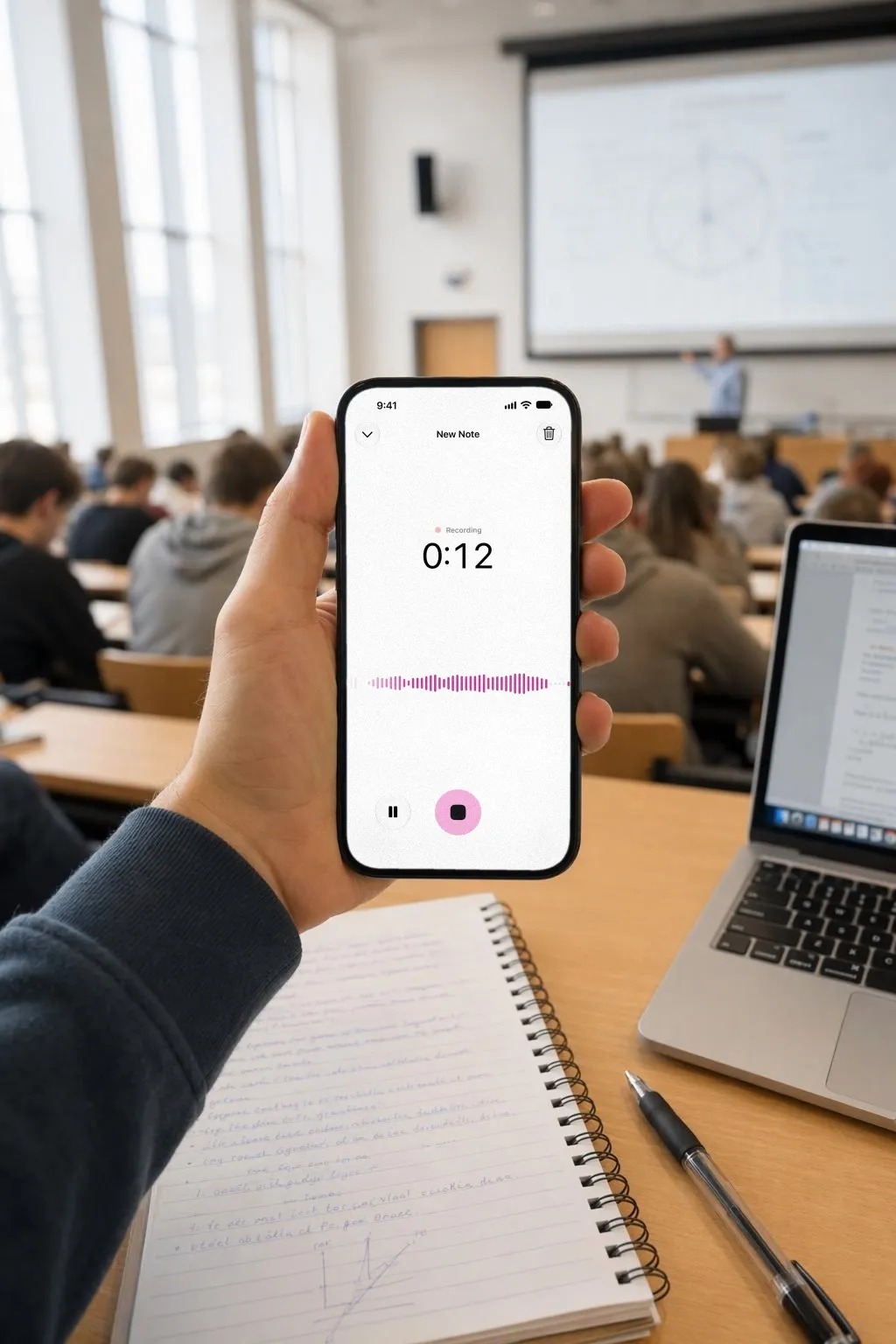
- Sit near the front. Within three or four rows of the lecturer is ideal. In a big hall with a PA system, a seat near one of the speakers works too.
- Phone flat, screen up. Put it on the desk, not in a pocket, a bag or your hand. The bottom microphone is the main one, so point that end towards the lecturer if you can.
- Away from noise you make. Keep it off the laptop, away from your pen, and off a desk that someone will lean on.
If you sit at the back of a big hall with no PA, expect a recording you can understand when you listen, and a transcript with gaps where the room was louder than the lecturer.
Start before the lecture does
Start recording a minute early. Lecturers often say the most useful thing in the first two minutes (“this week matters for the exam”) or the last two (“read chapter 7 before Thursday”), while everyone is still sitting down or already packing up.
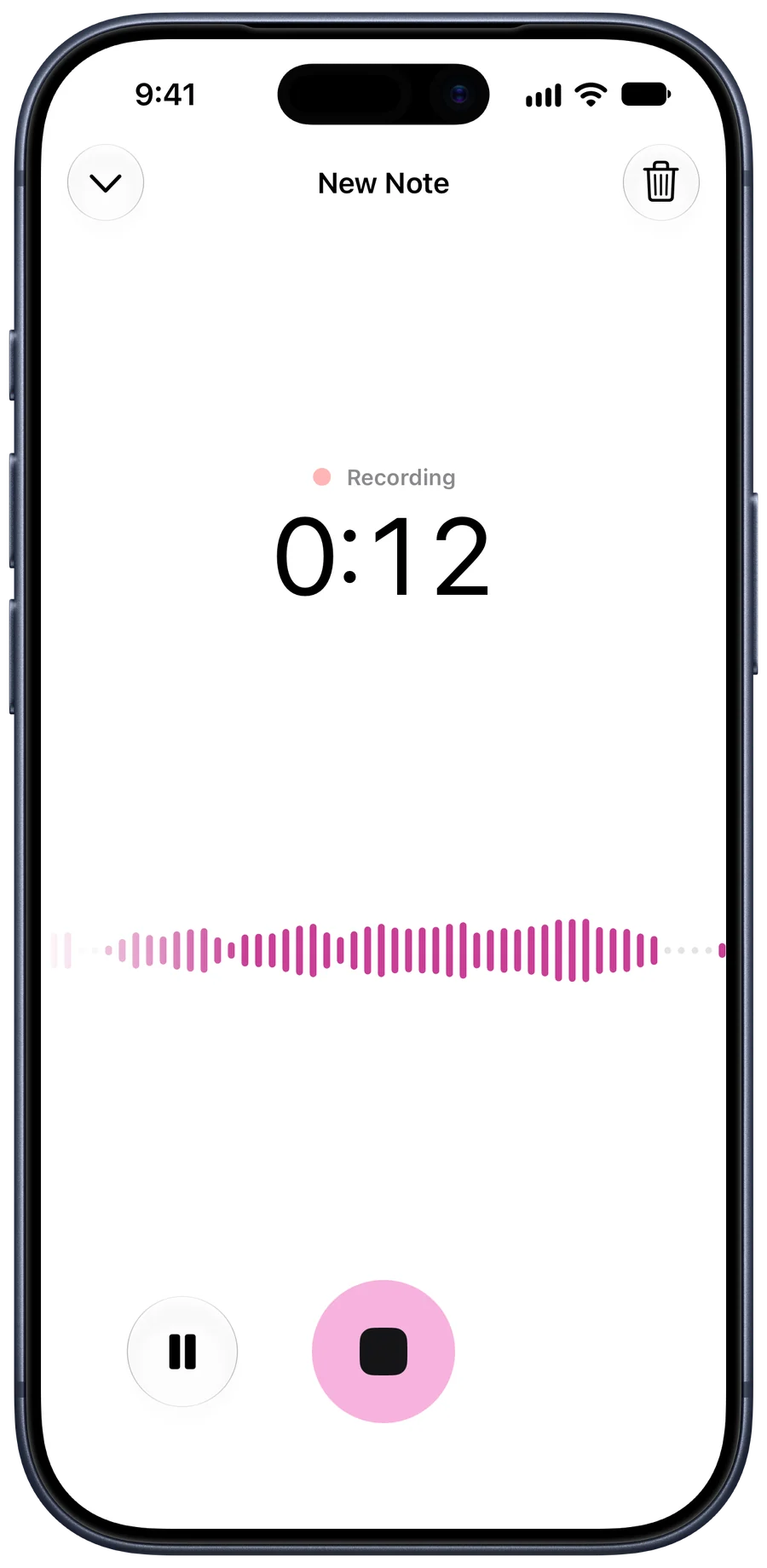
In Tapescript, give the recording a title before you start: the course and the week, such as “Biology, week 6”. Then put the phone down and listen. You can switch to other apps and lock the screen; the recording carries on, with a stop button in the Dynamic Island.
Turn the recording into notes
An hour of audio is not notes. Nobody listens to a whole lecture twice. What you want is the part you missed, the definition you half caught and the homework.
With Voice Memos, recent versions of iOS can show a transcript of the recording for some languages. You can search it, but you still have to read the hour to find the point.
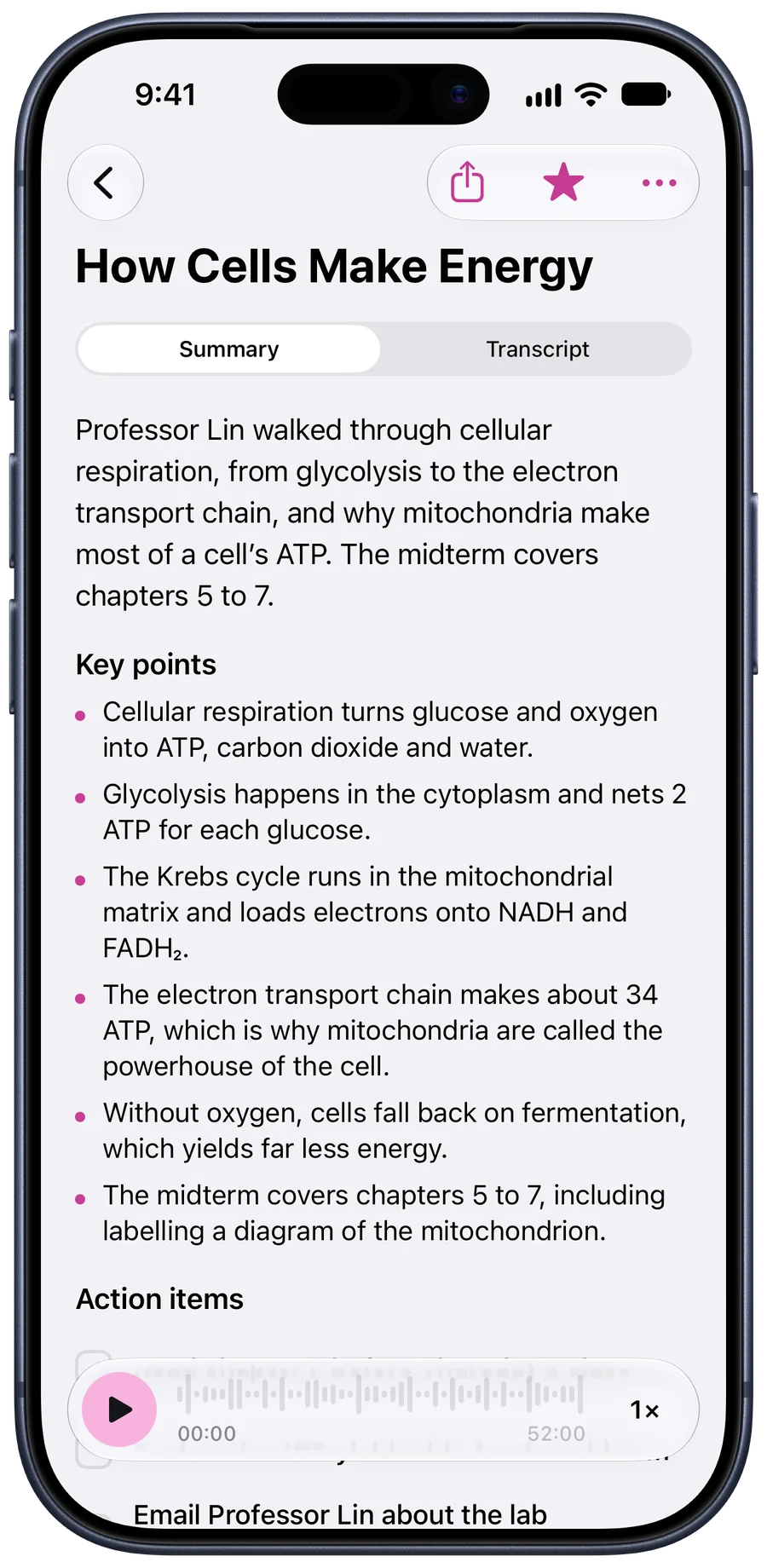
With Tapescript, when you stop recording you get:
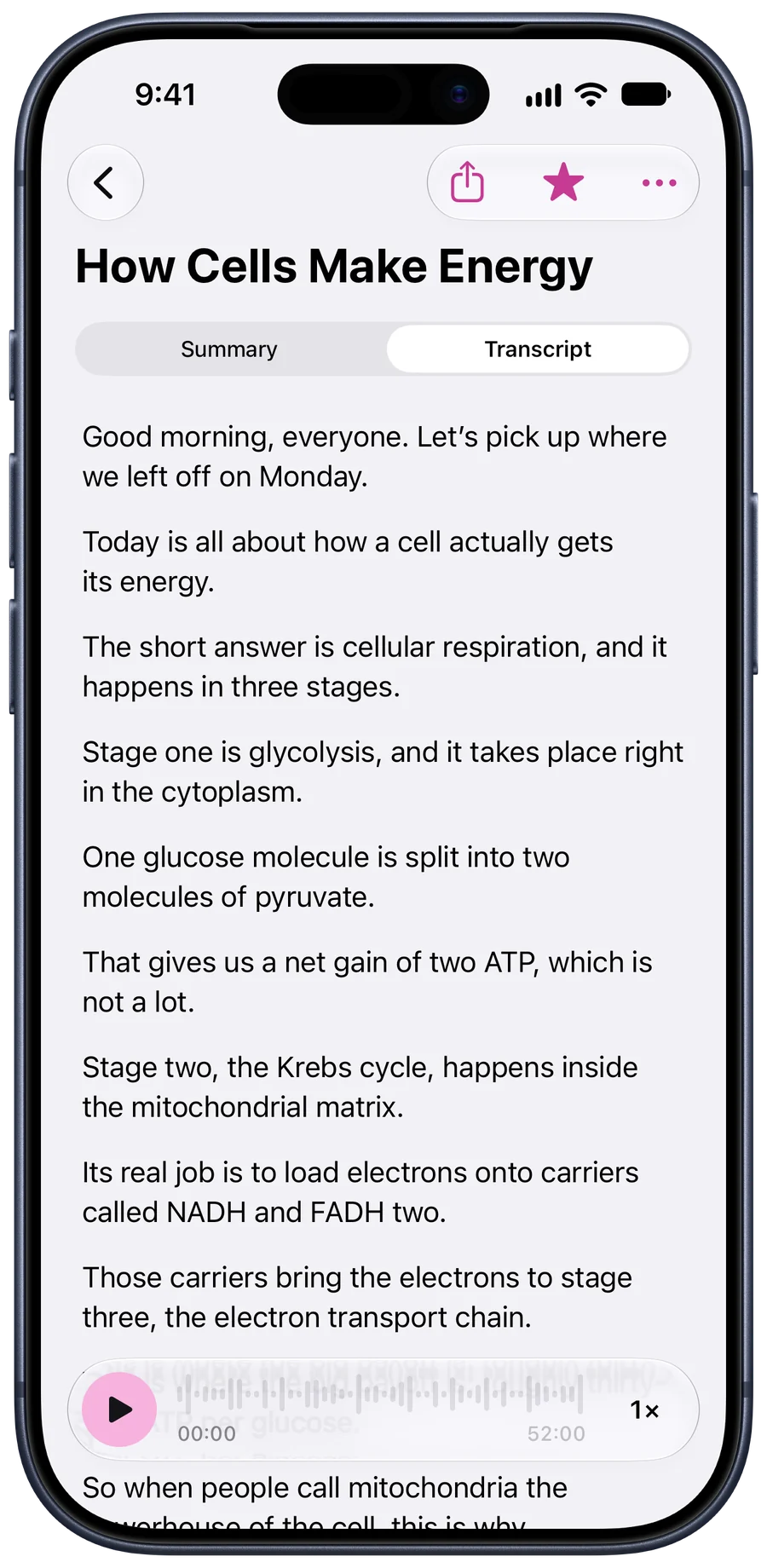
- The transcript, with the time of every line. Tap a line and the recording plays from that moment.
- A summary of what the lecture was about, in two or three sentences.
- Key points: the five or six things you’d have highlighted in the textbook.
- Action items: everything the lecturer asked you to do, such as reading, exercises or emails.
For a 52-minute biology lecture on how cells make energy, that means a summary of the lecture’s argument, key points on glycolysis, the Krebs cycle and the electron transport chain, and three action items: read chapter 7, review the ATP yield table for the midterm, email about the lab makeup session.
When it goes wrong
- The recording stopped early. Check the battery before a long day: hours of back-to-back classes on a low battery can end a recording. Tapescript’s free recordings also stop at 30 minutes.
- The transcript has gaps. The room was louder than the lecturer. Sit closer next time, and use the time of the gap to listen to that part.
- No signal in the hall. Tapescript writes the note on its servers, so a recording made without a connection waits on your phone and is written down when you’re back online.
- A language you don’t speak well. Choose the lecture’s language before you record. The transcript and the summary come back in it, which makes them good reading practice too.
The short version
- Ask first. Check your university's policy on recording teaching, or ask the lecturer. Disability services can arrange permission if you need recordings.
- Sit near the speaker. Pick a seat within a few rows of the lecturer, or near one of the hall's speakers if there is a PA system.
- Put the phone flat on the desk. Screen up, microphone end towards the front, not in a pocket or a bag.
- Start recording before the lecture starts. In Tapescript, tap record and give the recording a title, such as the course and the week.
- Stop at the end and read the note. When you stop, the transcript, a summary, key points and action items arrive in the note.
Questions
Can I record a lecture on my iPhone without an app?
Yes, with Voice Memos, which comes with every iPhone. You get the audio and, on recent versions of iOS, a transcript in some languages. You don't get a summary, key points or a list of what to do next.
How long a lecture can I record?
Voice Memos has no practical limit. Tapescript records up to 3 hours in one go with Pro, and stops free recordings at 30 minutes, still writing them down.
Do I need to ask permission to record a lecture?
Usually, yes. Many universities have a policy on recording teaching, and some lecturers already publish recordings. If you need recordings because of a disability, your university's disability services can arrange it.
Does my iPhone keep recording when the screen locks?
Yes, in Voice Memos and in Tapescript. Tapescript also keeps going when you switch apps, with a stop button in the Dynamic Island and on the Lock Screen.