 Tapescript
How to transcribe voice memos on iPhone
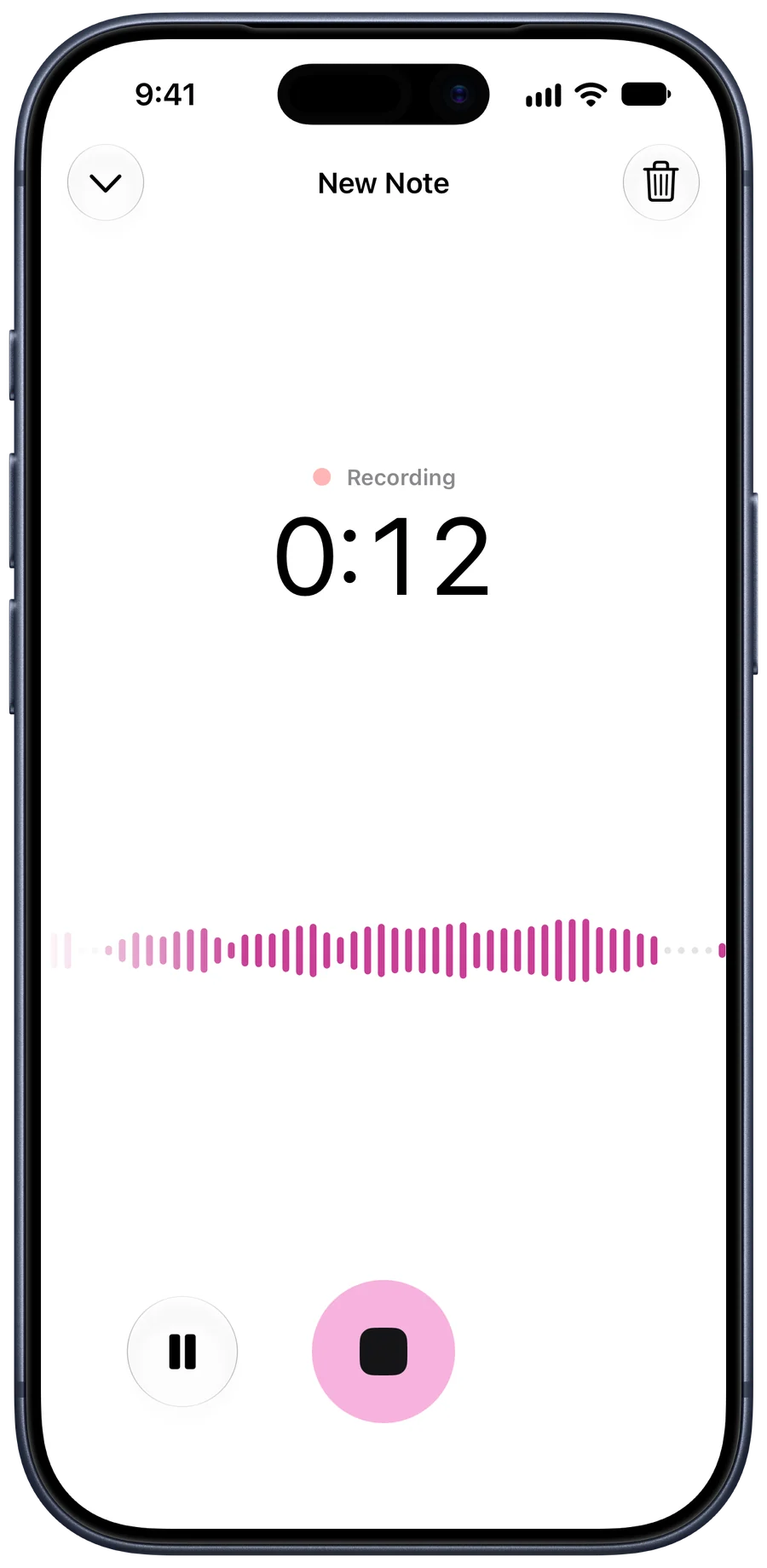
There are three ways to turn a voice memo into text on an iPhone. Recent versions of iOS can show a transcript right in Voice Memos, for some languages. You can play the memo to dictation, which is slow and loses words. Or you can share the memo to an app like Tapescript, which writes the whole transcript and adds a summary, key points and action items. The last takes about two taps, works in over 60 languages, and is the one that turns a rambling memo into something you’d act on.
Use the transcript in Voice Memos
Apple added transcripts to Voice Memos in recent versions of iOS. Open a recording and look for the transcript button; if your iPhone and the memo’s language support it, the text appears under the recording, and you can search it and copy it.
It’s free and nothing leaves your phone. The limits: it supports fewer languages than you might need, you get the words only, and long memos turn into long walls of text with no summary.
Share the memo to Tapescript
This works for memos you’ve already recorded, in any of over 60 languages.
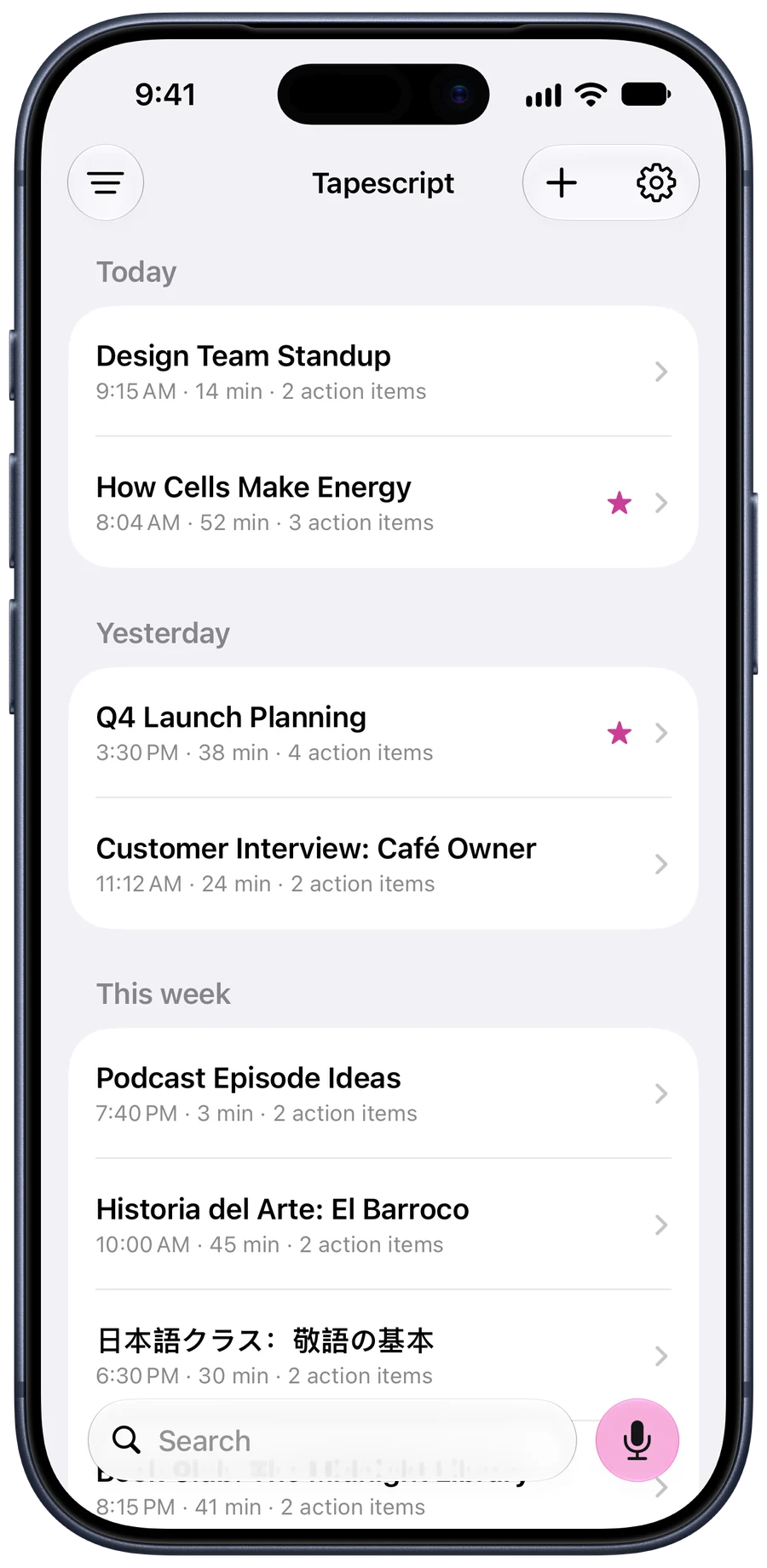
- Open Voice Memos and tap the recording.
- Tap the More button (three dots).
- Tap Share, then Tapescript. If it isn’t in the row of apps, scroll to the end and tap More.
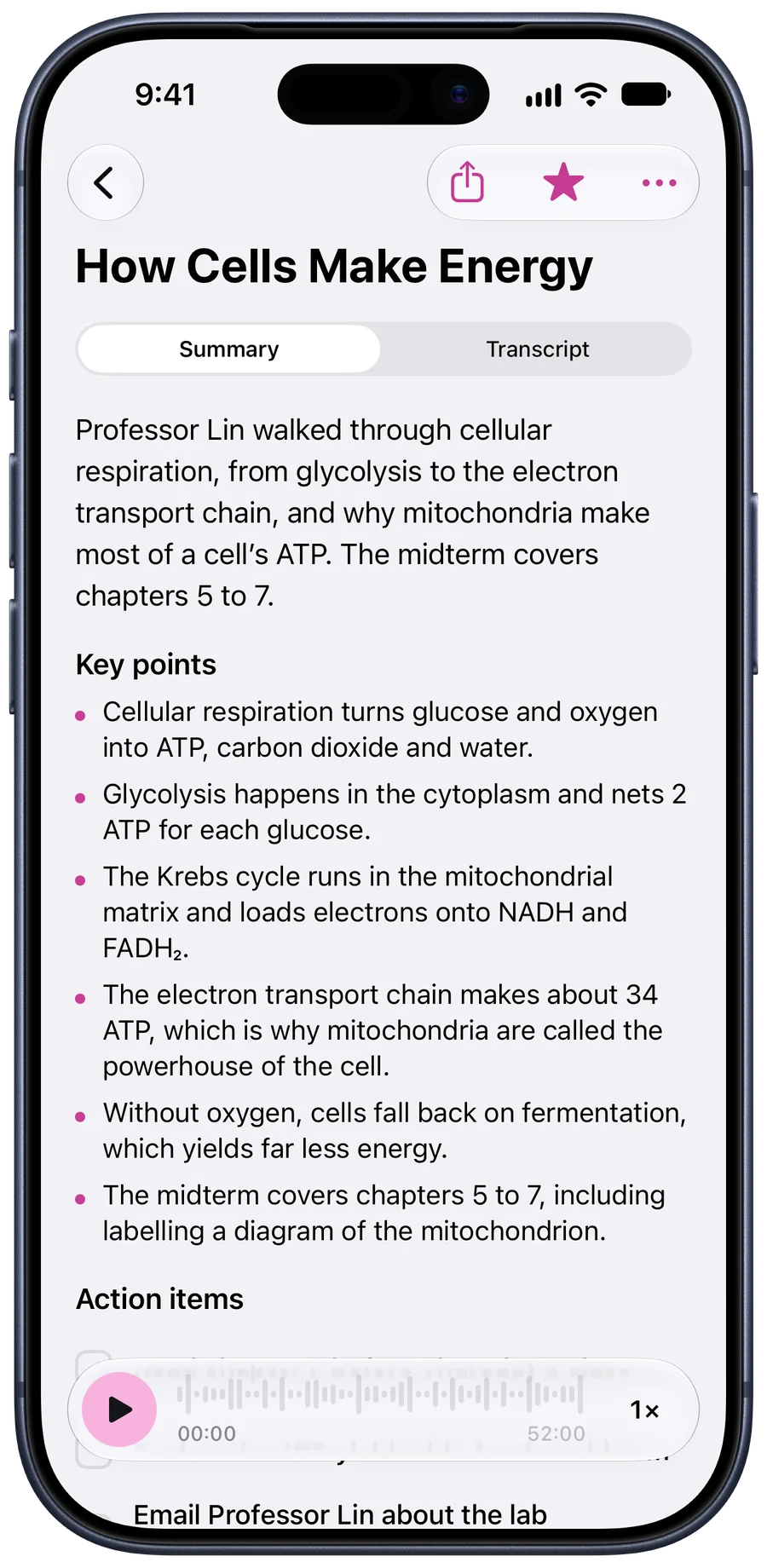
Tapescript starts writing straight away. If you’ve set more than one language in its settings, it asks which one the memo is in first. When it’s done, a new note holds:
- the full transcript, with the time of each line;
- a short summary;
- the key points;
- action items, if you said you’d do something.
A three-minute memo of podcast ideas, recorded on a walk, comes back as three episode ideas and the two things to do first. That’s the difference between a transcript and a note.
Import from Files or another app
The same works for audio and video from anywhere: a WhatsApp voice note you’ve saved, a recording from a call app, a lecture recording a classmate sent you, or a video. Share the file to Tapescript from the app it’s in, or save it to Files and import it from inside Tapescript.
For video, only the sound is used. The picture is never sent.
Dictation, if you have nothing else
You can play the memo out loud and dictate it into Notes. It works in a pinch, but it drops words whenever the playback is quiet, it needs a quiet room, and you have to sit through the whole memo. For anything longer than a minute, use one of the ways above.
What to expect from the text
- It’s as good as the audio. A memo recorded in a pocket, in wind or in a loud café will have gaps.
- No speaker names. Tapescript’s transcript is one stream of text with times. In a recorded conversation you’ll read it as dialogue, not a script with names.
- It needs a connection. Tapescript writes the note on its servers, then discards the audio. The note itself is saved in your own iCloud.
The short version
- Open the recording in Voice Memos. Open Voice Memos and tap the recording you want as text.
- Open its options. Tap the More button (three dots) on the recording.
- Share it to Tapescript. Tap Share, then Tapescript. If you don't see it, tap More at the end of the row of apps.
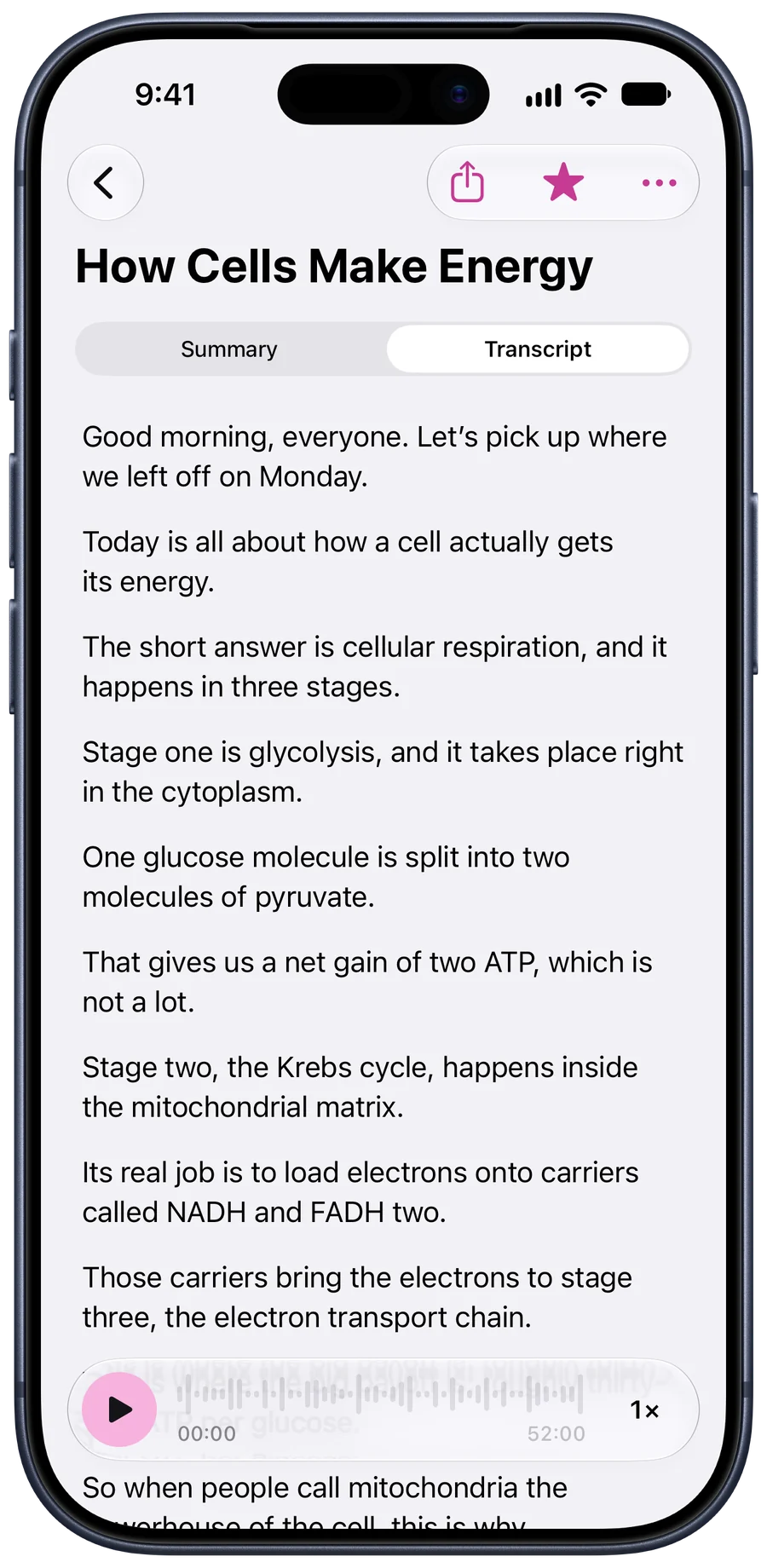
- Read the note. Tapescript writes the transcript, a summary, key points and action items into a new note.
Questions
Does iPhone transcribe voice memos by itself?
Recent versions of iOS can show a transcript in Voice Memos for some languages, mainly English. It is a transcript only, without a summary or a list of things to do.
Can I transcribe a long voice memo?
Yes. Tapescript takes recordings and files up to 3 hours long with Pro. Free recordings and files stop at 30 minutes and are still written down.
Can I transcribe a voice note from WhatsApp or another app?
If the app can share the audio file or save it to Files, yes. Share it to Tapescript, or save it to Files and import it from the app.
Can I transcribe a video?
Yes. Share or import a video file and Tapescript uses its sound; only the audio is sent to be written down.